


Luminar: Photo Editor&Enhancer
4.5322.00 Reviews
App Specs
- Version
- 4.3.1
- Updated On
- License
- Free
- Downloads
- 1,000,000+
- Developer
- Skylum Software
- Categories
- Photography
- Platform
- Android
Screenshots
 Analysis by AppCompare
I judge a photo editor less by how many sliders it offers than by whether it helps me get from a camera roll full of possibilities to an image I’m happy to share. Luminar: AI Photo Editor aims to make that process approachable, especially when I want a quick improvement without building every adjustment from scratch. Its AI-led approach can save time, but it also means I need to check the result rather than assume every suggestion suits the picture.
Who will get the most from it
I’d put this app on the shortlist for people who take plenty of portraits, travel photos, or everyday scenes and want a more polished result without learning a complicated editing workflow first. It is also useful when I have several different kinds of pictures to work through: an automated starting point can be quicker than manually hunting through controls for each one.
That convenience is most valuable when the original photo is already reasonably strong. If I have a well-composed shot with a slightly flat sky, a distracting blemish, or colors that feel muted, suggested edits give me a place to begin. They are less likely to rescue a badly blurred image or fix a subject that was missed at capture time. I treat AI as an editing assistant, not a substitute for focus, light, and composition.
How I’d use it in an ordinary week
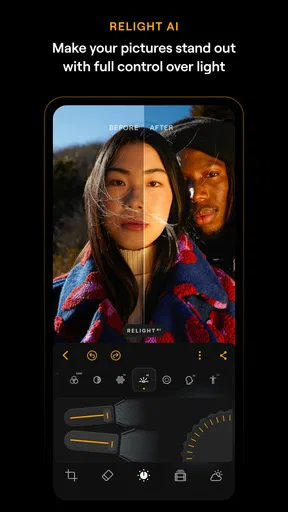
Imagine I’ve taken a quick portrait outdoors after work. The person is in focus, but the light is uneven and the background competes for attention. I’d start by letting the app offer its portrait adjustments, then compare the result with the untouched image before accepting anything. If smoothing makes skin look less natural, I’d dial back the effect or skip it; if the eyes become too prominent, I’d keep the original. The useful result is a portrait that still looks like the person, not the strongest possible demonstration of an editing tool.
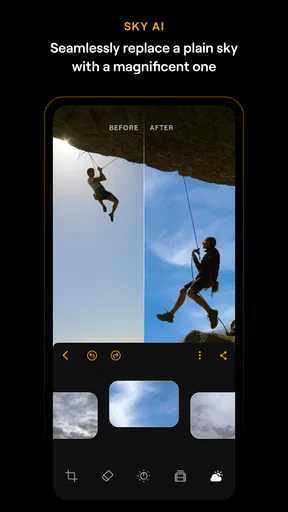
For a landscape from the same camera roll, I’d take a different route. A sky treatment may give a washed-out scene more impact, but it can also make a photo feel artificial if the foreground light and sky no longer seem to belong together. I’d inspect the edge around trees and buildings, then use cropping or basic adjustments to bring the picture into balance. The practical habit is to judge the whole frame at normal viewing size, not just the dramatic part of the preview.
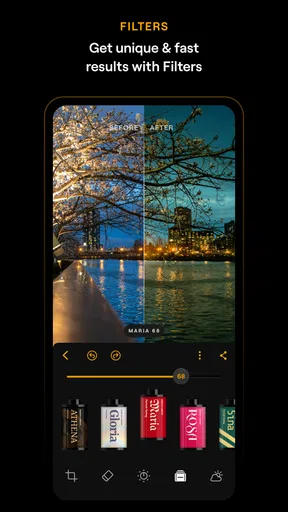
For social posts, a template can make a batch of unrelated images feel more consistent, but I would not automatically apply the same look to every shot. A preset that suits a sunny street photograph may flatten a warm indoor portrait. I’d use one as a starting point and make small corrections image by image. That takes a little longer than a one-tap edit, yet it avoids the overly uniform look that can make a personal gallery feel processed.
Choosing an editor that fits your workflow
I use this section to think through what I actually need from a phone editor before choosing one: a quick improvement, a distinctive look, or precise control over each adjustment. That distinction matters because a helpful AI starting point can speed up casual edits, while a manual-first workflow may suit images where consistency and restraint come first.
Worth Reading Before You Choose

Flipboard Shows What News Apps Must Do Beyond the Feed

Switching to Android Auto Means Rethinking Your Driving Routine

Google Calendar Makes a Crowded Week Easier to Manage

Ludo King Makes the Most of the Minutes Between Plans

Baby Panda World Brings Quick Play to Modern Phones, but Its Game Library Feels Busy

ESPN’s Live Game View Makes Following Close Games Easier
Getting Started with Luminar AI
First things first, downloading and installing the app was a breeze. Available for both Android and iOS, it's just a quick search away in your app store. Once installed, you’re greeted with a sleek, user-friendly interface that doesn’t intimidate. No one wants to feel like they’re navigating a spaceship just to edit a selfie, right?
The app welcomes you with a simple dashboard where you can either take a new photo or upload one from your gallery. What I love about Luminar AI is that it doesn’t bombard you with features right off the bat. Instead, it gently eases you into the experience, making it perfect for both newbies and seasoned pros.
The Magic of AI Editing
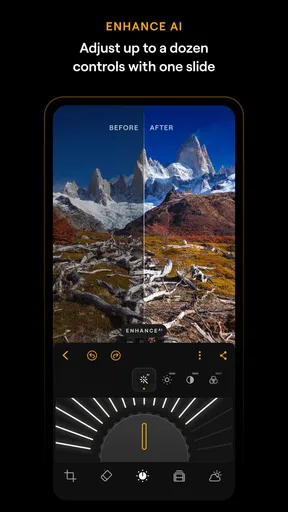
Now, let’s talk about the star of the show—AI editing. This is where Luminar truly shines. The AI technology is designed to recognize the elements of your photo and suggest edits accordingly. It's almost like having a professional editor sitting right next to you.
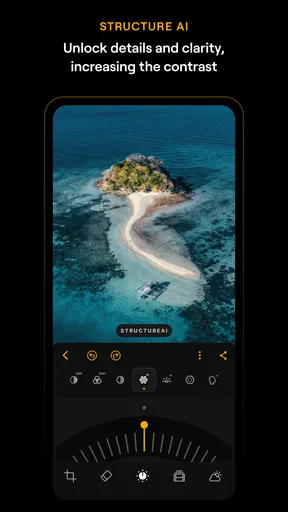
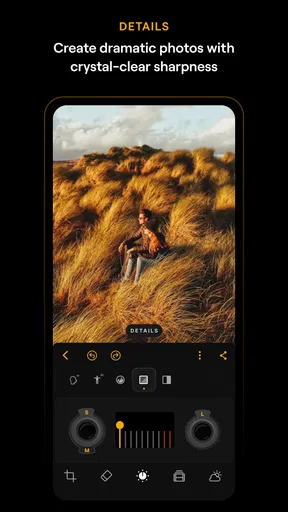
For instance, if you upload a landscape photo, the AI suggests adjustments like enhancing the sky, sharpening the details, or even adding a dramatic filter. And let me tell you, the sky enhancement tool is nothing short of wizardry. One tap, and your dull sky transforms into a vibrant masterpiece.
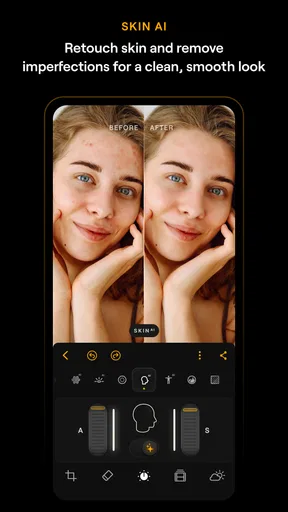
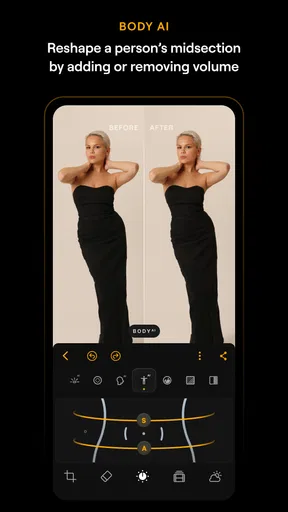
Portrait editing is another area where Luminar’s AI stands out. It can automatically detect faces and offer enhancements such as skin smoothing, blemish removal, and eye brightening. The best part? It’s subtle. You won’t end up looking like a porcelain doll unless that’s the look you’re going for.
Exploring Features
Apart from AI magic, Luminar packs a bunch of other features that are worth exploring. You get the usual suspects like cropping, rotating, and basic adjustments, but there are also more advanced tools for those who want to dig deeper.
- Templates: These are pre-designed filters and edits that can be applied with a single tap. Perfect for when you’re in a rush.
- Layers: Yes, you can work with layers! This feature is a gem for anyone who loves to add textures or blend multiple photos.
- Brush Tools: For those who like to get their hands dirty, the app offers brushes for dodging, burning, and other intricate edits.
Making small edits more deliberate
Layers and brushes suggest a useful middle ground between automatic enhancement and a fully manual workflow. If a texture or blended element makes sense for a particular image, layers let me approach that creative treatment separately from the basic corrections. I would keep the effect restrained and check whether it supports the subject; adding texture just because the option exists can make an otherwise clear photograph feel busy.
Brushes are better suited to targeted changes than to broad, automatic fixes. I’d use them when one area needs attention but the rest of the frame already looks right, such as subtly lifting a shadowed detail without changing the overall mood. The trade-off is time and precision: a brush gives me more control, but a quick automatic edit is easier when the goal is simply to improve a snapshot and move on.
Where other editing approaches may fit better
Compared with a basic phone editor, this app is appealing when I want AI suggestions, portrait retouching, templates, or more involved tools in the same editing space. A built-in editor is often enough for a straightforward crop, rotation, or small exposure correction, and it may be the better choice when I want to make one quick change without exploring a separate app.
At the other end, photographers who prefer to make every decision themselves may be happier with a manual-first editor. Luminar’s suggestions are convenient, but they can steer the image toward a pronounced, polished look that not everyone wants. For documentary work, subtle color correction, or a consistent personal style, I’d inspect each adjustment carefully and favor direct control over accepting a preset wholesale.
There is also a difference between editing one memorable image and managing a large, carefully organized photo workflow. Luminar’s appeal here is its approachable editing toolkit, not a reason to assume it will replace every tool a photographer uses. If sorting and organizing a substantial archive is the main task, I would choose an option built around that workflow and use this app where its editing approach is the better fit.
Performance and User Experience
In terms of performance, Luminar AI is surprisingly smooth. It doesn’t lag, even with high-resolution images, which is a huge plus. The app is regularly updated, ensuring any bugs are swiftly squashed and new features are added.
The user experience is another area where Luminar scores high. It’s intuitive and easy to navigate, which means less time figuring things out and more time editing. If you ever get stuck, there are plenty of tutorials and a helpful community ready to assist.
Price, version, and the commitment to switch
The app is free to download, while in-app purchases range from $0.99 to $179.99 per item. That wide spread makes it sensible to explore the free experience and decide what you actually need before paying for anything. I would check the purchase details in the app before committing, and avoid buying an add-on simply because a particular edit looks impressive in a preview. The right question is whether it solves a recurring problem in the photos I take.
It is a photography app from Skylum Software, currently at version 3.3.1, and it was released on April 30, 2025. It has an average rating of 4.4 from around 11,000 ratings, with more than 1 million installs. The Everyone age classification makes it suitable for a broad audience, though the editing choices themselves still call for judgment if the goal is a natural-looking portrait.
Switching editors has a small but real cost: I need to learn where the controls are, work out which adjustments I trust, and decide whether I want to keep using another app alongside my usual tools. I would not move an entire editing routine over after one eye-catching result. Instead, I’d try a few representative photos—a portrait, a landscape, and an ordinary indoor shot—and see whether the suggested starting points consistently save effort without making the images feel unlike mine.
Final Thoughts
So, is Luminar: AI Photo Editor worth your time? Absolutely! Whether you’re a casual photographer looking to enhance your Instagram game or a professional needing robust editing tools, Luminar AI has something for everyone. The AI features are especially impressive, making complex edits accessible to all skill levels.
Give it a whirl, and you might just find yourself falling in love with photo editing all over again. So, what are you waiting for? Go ahead and download it, and let your creativity run wild!
My recommendation
I recommend it most to people who want a friendly route into more expressive photo editing and are willing to review an automatic result rather than accept it blindly. Portraits and landscapes are natural places to test its AI-led approach, while templates, layers, and brushes give curious users room to go beyond a quick filter. For a person who mainly crops pictures or prefers complete manual control, a simpler or more hands-on alternative may be a better everyday fit.
My best advice is to start with a copy or a photo you can comfortably experiment on, compare edits against the original, and keep only changes that improve the image for your purpose. If that process feels enjoyable—and the app’s suggestions save you time without taking over your style—then it is worth keeping in your editing rotation. If you find yourself undoing most suggestions, that is a good sign to choose a more manual tool instead.
Pros
- Intuitive AI tools enhance photo editing.
- Batch processing saves time with multiple images.
- Presets offer quick
- professional results.
- User-friendly interface for beginners.
- Regular updates improve features and stability.
Cons
- Limited manual control for advanced users.
- Requires high system resources for smooth use.
- Subscription model might be costly for some.
- Occasional lag on older devices.
- Some AI features need internet connection.
FAQs for Luminar: Photo Editor&Enhancer
What is Luminar: AI Photo Editor and what are its main features?
Luminar: AI Photo Editor is a powerful photo editing app designed for both Android and iOS users. It leverages artificial intelligence to enhance photos automatically. Key features include AI-powered sky replacement, portrait enhancement, and creative filters. It's ideal for both professional photographers and casual users wanting quick edits without compromising quality.
Is Luminar: AI Photo Editor suitable for beginners?
Yes, Luminar: AI Photo Editor is designed with an intuitive interface that caters to both beginners and advanced users. The AI-driven tools simplify complex editing tasks, allowing novices to achieve professional-looking results with minimal effort. Additionally, tutorials and guides within the app help users better understand and utilize its features.
Does Luminar: AI Photo Editor offer any unique AI features?
Absolutely! Luminar is renowned for its AI capabilities, such as AI Sky Replacement, which can change the sky in your photos seamlessly. It also offers AI Portrait Enhancement, which automatically adjusts facial features for optimal results. These features save time and effort, making complex edits accessible to everyone.
Are there any in-app purchases or subscription fees for Luminar?
Luminar: AI Photo Editor offers both free and premium versions. The free version includes basic editing tools, while the premium version, available via in-app purchases, unlocks advanced features and tools. Subscription plans vary, offering options to suit different budgets and usage needs, ensuring flexibility for all users.
How does Luminar: AI Photo Editor compare to other photo editing apps?
Luminar stands out due to its robust AI capabilities, which simplify the editing process. Unlike many apps, it offers comprehensive tools for both casual edits and professional-grade enhancements. Its unique features, like AI-driven adjustments and creative filters, provide a distinct advantage, making it a preferred choice for many users.


